 Follow Us on Google
Introduction
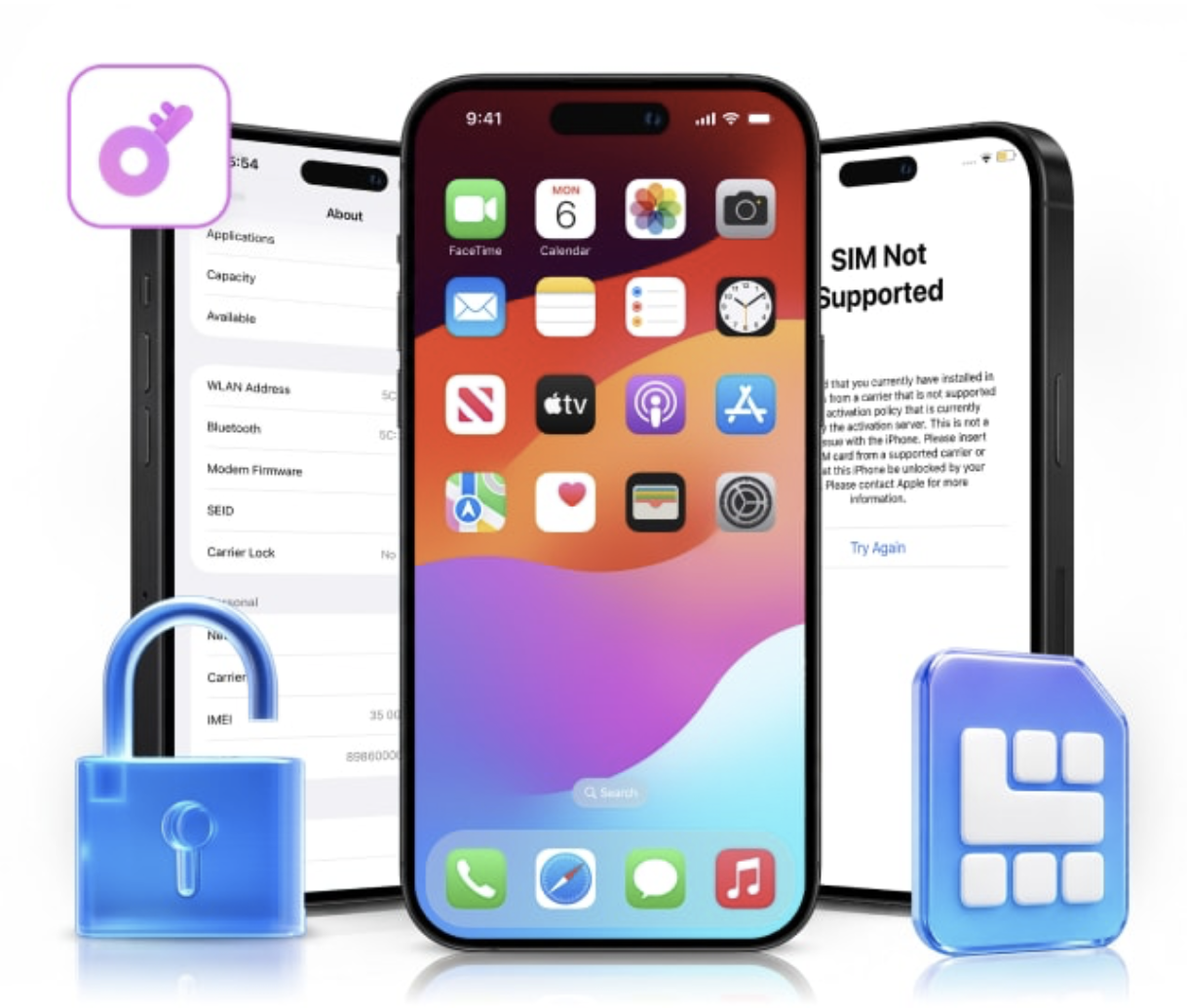
Trying to unlock your iPhone? Which type of unlock do you need? The iPhone screen unlock is what you need when you’re locked out of your device due to a forgotten passcode. The carrier unlock is when you want to use your iPhone on another mobile network. Does that sound the same? They’re two completely different issues.
In this guide, we’ll break down iPhone screen unlock vs. carrier unlock, how each works, and which one you need.
What Is an iPhone Screen Unlock?
Unlocking your iPhone screen simply means removing your lock screen passcode so you can start using your device again. Apple has set up Face ID, Touch ID, and passcodes to keep your iPhone secure and to keep those who shouldn’t have access to it from unlocking it.
You might need a screen unlock in situations like:
What about your data? The passcode on your iPhone protects encrypted data stored on your device. If you forget it, most of the official recovery processes do erase your iPhone, resulting in the loss of any locally stored data – which can be restored from backup.
What is a Carrier Unlock?
Carrier unlocks are basically removing the network lock that your mobile carrier provider applies to your iPhone. For instance, if your iPhone is attached to AT&T, it cannot function with T-Mobile SIMs unless your carrier has unlocked it. This allows you to change to a different carrier that your iPhone supports without getting a new one.
It doesn’t affect your passcode, Face ID or Touch ID like a screen unlock does. It just allows your iPhone to work on different mobile networks.
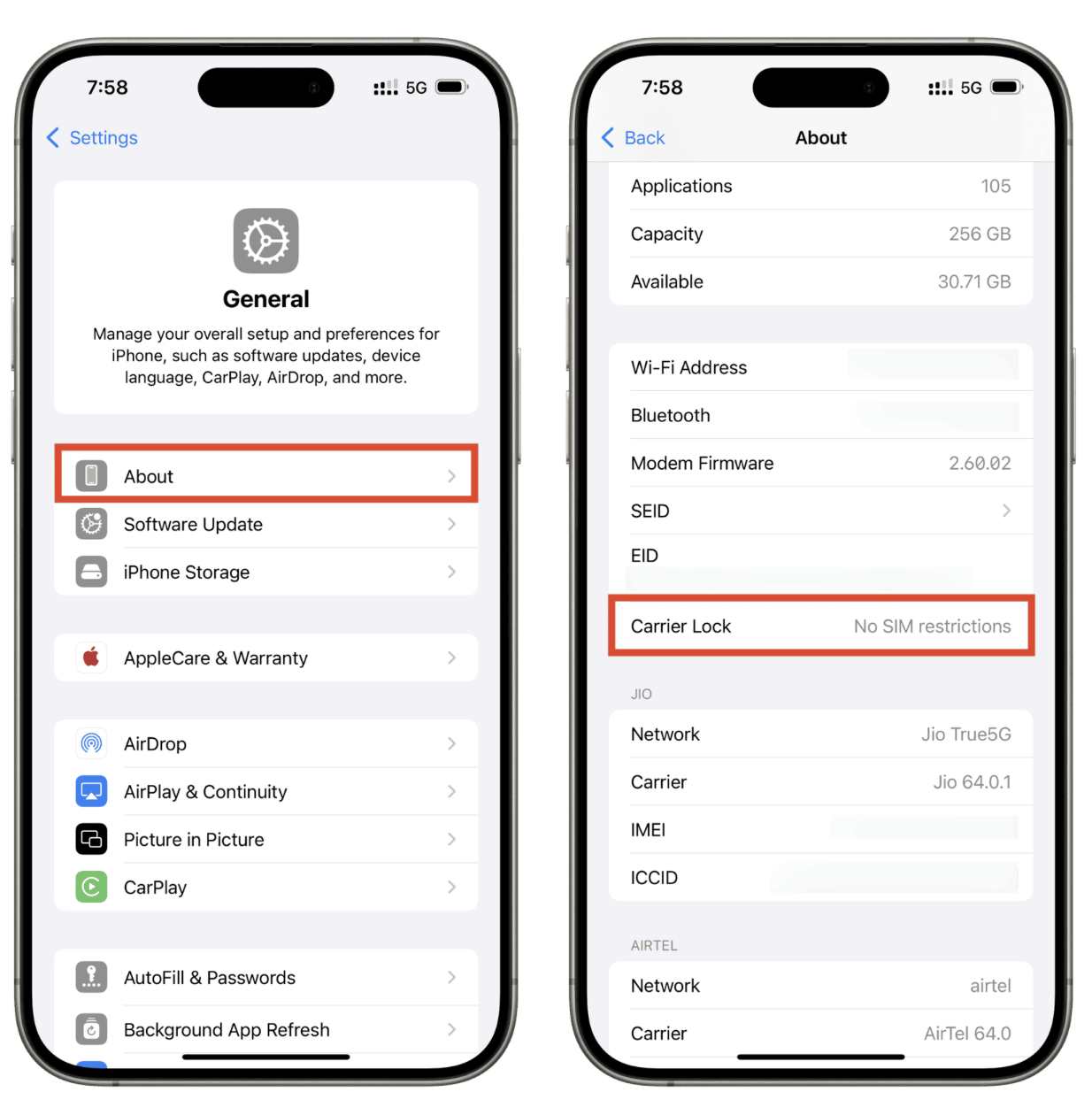
Want to check whether your iPhone is carrier unlocked? Apple makes it easy:
Step 1. Open Settings on your iPhone.
Step 2. Go to General > About.
Step 3. Scroll down to Carrier Lock.
If you see “No SIM restrictions,” your iPhone is carrier unlocked. Otherwise, contact your current carrier to check your eligibility for unlocking.
Carrier unlocking and iPhone unlocking address different issues. One helps iPhone users access their devices while the other enables users to switch from one cellphone carrier to another. Here’s a short comparison that clarifies things for you.
|
Question |
Screen Unlock |
Carrier Unlock |
|
What prevents access? |
Device passcode |
Network-provider restriction |
|
Where does it appear? |
iPhone Lock Screen |
Network Provider Lock in Settings |
|
Main purpose |
Regain access to the device |
Use another mobile carrier |
|
Who handles it? |
Apple recovery methods or screen unlock software |
Current mobile carrier |
|
Does it remove the passcode? |
Yes, typically by erasing the device |
No |
|
Does it remove Activation Lock? |
No |
No |
What Is Activation Lock?
Activation Lock – is neither a screen nor a carrier unlocks. Activation Lock automatically kicks in when you switch on Find My iPhone and connect your device to your Apple Account. It is there to make sure no one else can use your iPhone if it gets lost or stolen.
When setting up your iPhone, if you see “iPhone Locked to Owner”, Activation Lock is turned ON. You can turn off Activation Lock by using the Apple ID and password that was used to set up the device or Apple assistance with valid proof of purchase.
Here’s the main difference: A screen unlock disables the device passcode. A carrier unlock disables the network restriction. Neither can get you past Activation Lock. Even on a factory reset iPhone, Activation Lock can prevent you from completing the setup.
When Do You Need iPhone Unlock Software?
Lost or forgotten your iPhone Passcode? Or is iPhone showing “iPhone Unavailable” message? Why try to reset your iPhone passcode with those difficult manual recovery steps when you can use Dr.Fone – Screen Unlock (iOS) to unlock your supported iOS device along with supported iPhone, iPad and iPod touch devices?
Here are some of its key features:
Steps to unlock your iPhone using Dr.Fone
Step 1. Download and install Dr.Fone on your PC. Navigate to Toolbox > Screen Unlock > iOS > Unlock iOS Screen.
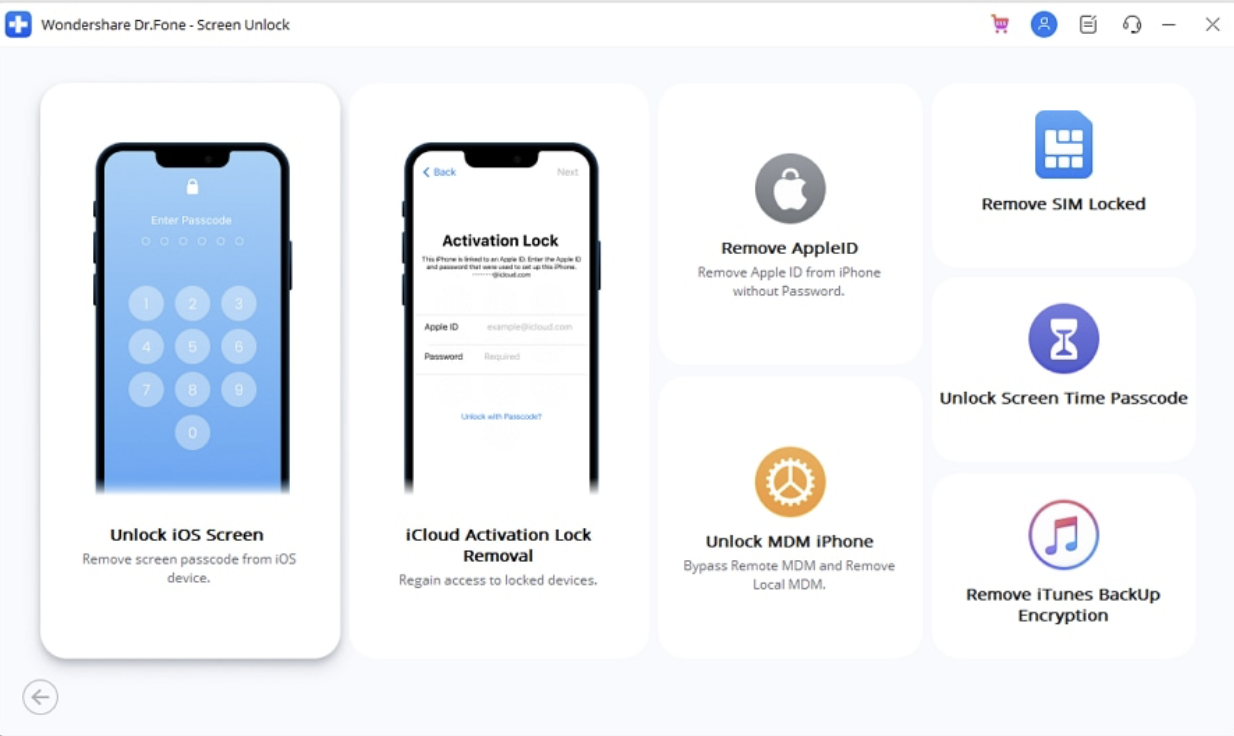
Step 2. Connect your locked iPhone to the computer and click Start. Follow the on-screen instructions to enter Recovery Mode.
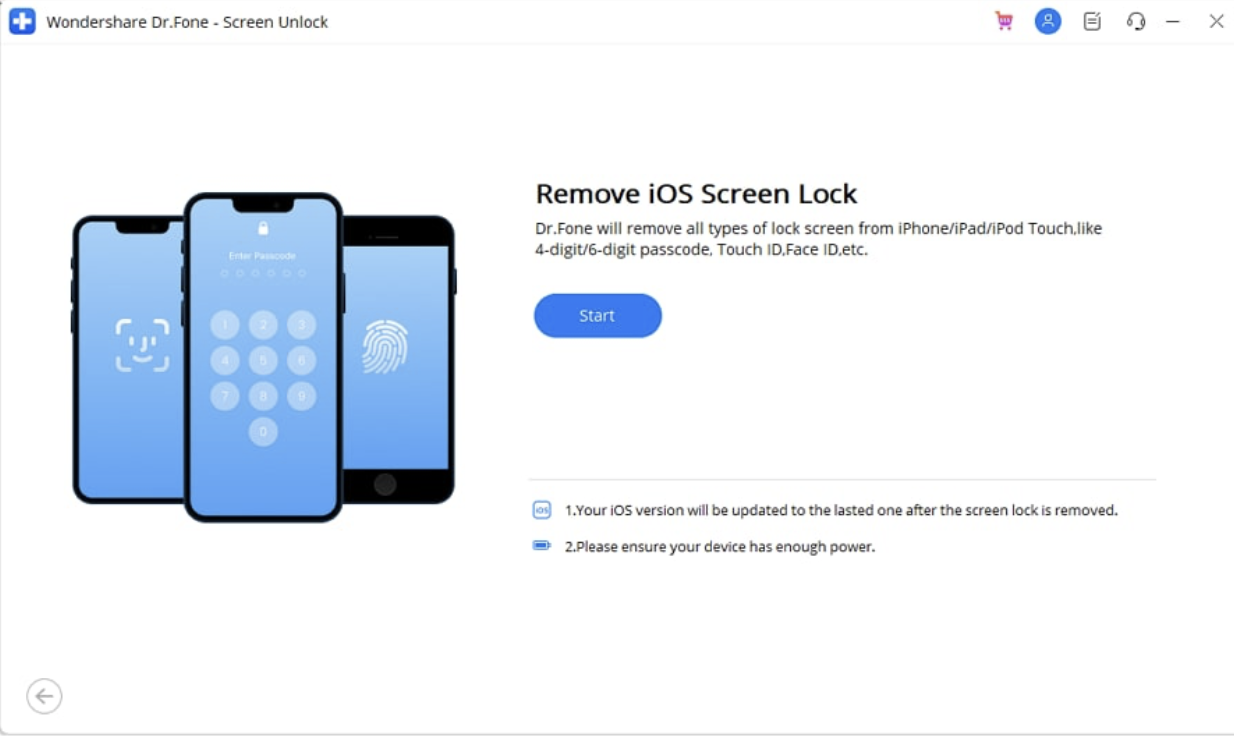
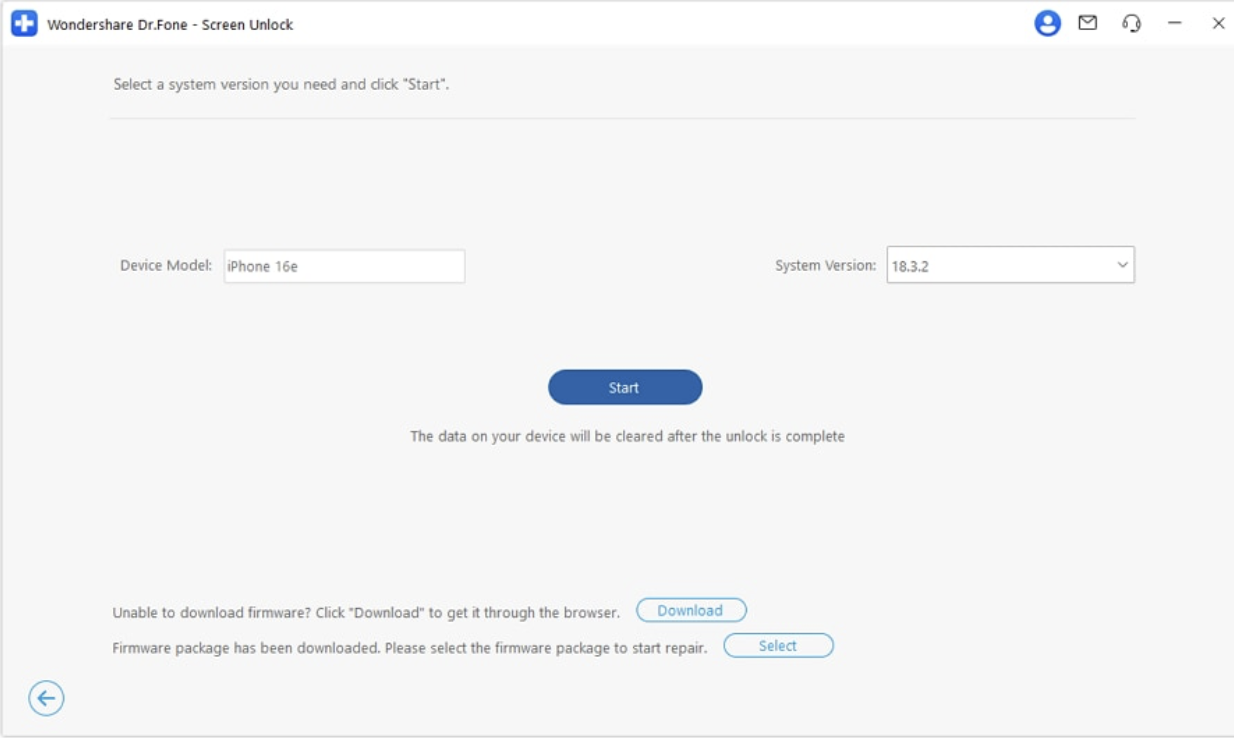
Step 3. Confirm your iPhone model and iOS version. Click Start to download the required firmware.
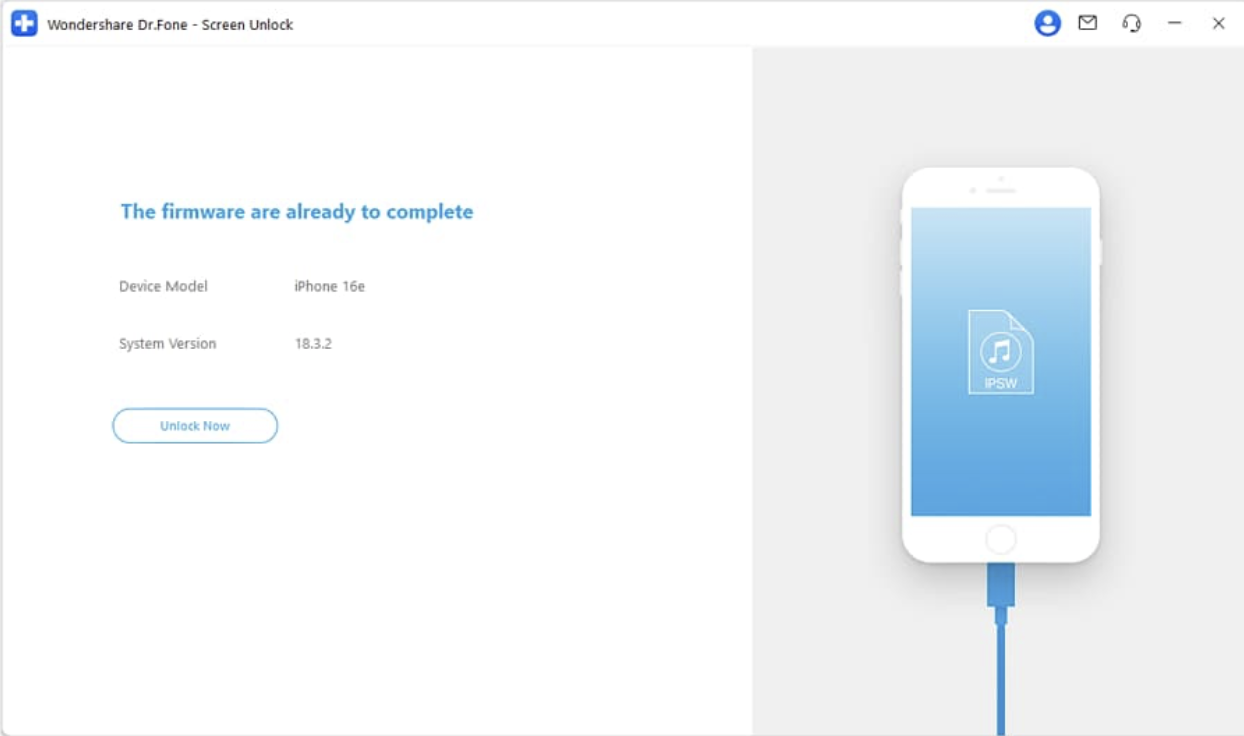
Step 4. Click Unlock Now, enter the confirmation code, and select Unlock.
When Should You Contact Your Carrier Instead?
If your iPhone is working well but it won’t accept an SIM card or an eSIM from a different network, your phone probably needs a carrier unlock. This often occurs if you buy your iPhone through a mobile provider that restricted its use to its network only.
First, go to Settings > General > About > Network Provider Lock. If it says, “No SIM restrictions,” your iPhone is already carrier-unlocked.
Can One Unlock Method Solve All Three Problems?
No, there is no one unlocking solution that can solve all these issues. Screen unlock, carrier unlock and Activation Lock removal, all use different security systems, so needs different solutions.
For instance, even if you reset your iPhone’s screen passcode, you won’t be able to insert another carrier’s SIM. Similarly, a carrier unlock won’t remove your passcode or the “iPhone Locked to Owner” message.
That’s why it’s so important to diagnose the issue first. If your device has a screen lock, you’ll need to consider a passcode recovery method. If you can’t switch networks, call your carrier. If Activation Lock kicks in, you’ll need the associated Apple Account or Apple’s legitimate proof of ownership process. Each solution will save you time and avoid data loss.
Conclusion
Though their names are similar, unlocking a screen is different from unlocking your carrier. Unlocking your screen is the process of opening a locked iPhone. Carrier unlock allows a user to take an iPhone to a different network. Activation Lock is a separate security feature tied to your Apple Account.
Suppose you have entered the wrong password several times or your iPhone is disabled. In that case, Dr.Fone – Screen Unlock (iOS) provides a step-by-step process for certain supported devices. However, if your iPhone is locked to your carrier, you will need to get in touch with your network provider. Just be sure of what type of lock you have first.